
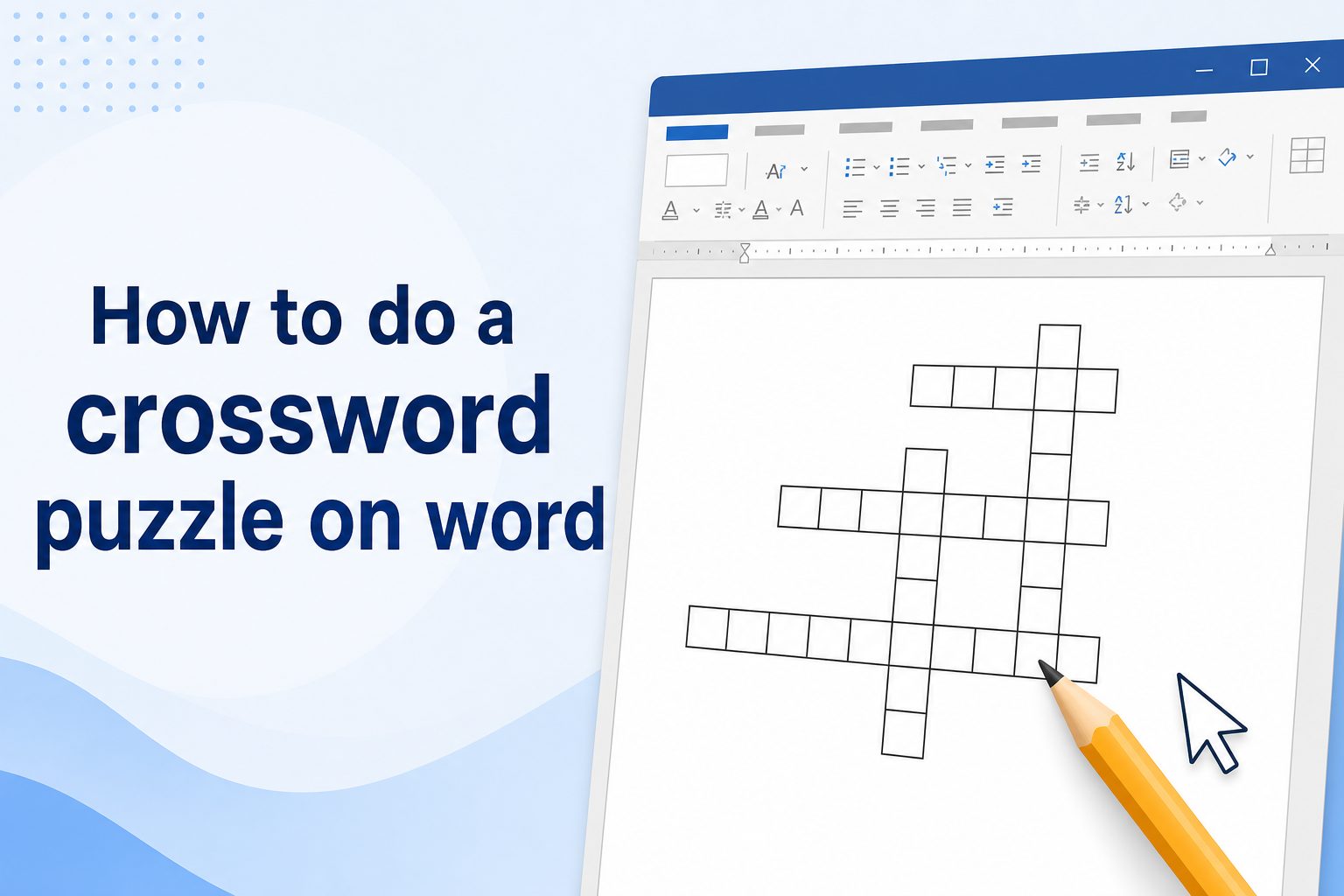
Learning how to do a crossword puzzle on Word is useful when you want a printable, editable, and professional-looking puzzle without buying special software. Microsoft Word is not a dedicated crossword maker, but its tables, formatting tools, borders, shading, and text controls make it surprisingly effective for building a clean crossword grid.
A crossword puzzle in Word can be used for classrooms, office training, family games, newsletters, worksheets, language practice, or party activities. You can create a simple blank grid for solvers, add numbered clue cells, and place the Across and Down clues below or beside the puzzle.
The key is to plan the words first, then build the grid with a table instead of trying to draw each square manually. Once the layout is ready, Word lets you adjust cell size, hide unused squares, format clue lists, and export the finished puzzle as a printable document or PDF.
This guide explains the full process in practical terms, including setup, grid creation, clue writing, formatting, examples, mistakes to avoid, best practices, and frequently asked questions.
A crossword puzzle in Word is usually made with a table. Each table cell becomes one square in the crossword grid. White cells hold letters, clue numbers, or blank spaces for solving. Black cells separate words and create the familiar crossword pattern.
Word is useful because it gives you control over the page layout. You can set margins, choose portrait or landscape orientation, adjust table dimensions, and create a puzzle that fits neatly on one page. This is especially helpful for teachers and trainers who need printable worksheets.
Before building the grid, list the answers you want to include. Choose words that match your topic, such as vocabulary terms, holiday words, business concepts, names, or review questions. Then write clues that are clear enough for the intended audience.
A good crossword is not only about appearance. It should be solvable, balanced, and easy to read. The words should cross logically, the clue numbers should match the grid, and the formatting should guide the solver instead of making the page feel crowded.
For best results, create two versions of the document. One version should be the blank puzzle for solvers, and the other should be an answer key. This makes it easier to print, share, grade, or reuse the puzzle later.
How Do You Make A Crossword Grid In Word?
1. Plan The Word List First
Start with a focused word list before opening the table tool. A crossword becomes much easier to build when you already know the answers, their spelling, and their approximate lengths. Choose words that share letters so they can cross naturally, and avoid too many long answers unless you have enough page space.
2. Sketch A Rough Puzzle Layout
A quick rough sketch helps you decide how many rows and columns your grid needs. You can sketch on paper or type a simple draft with letters and spaces. This step prevents you from creating a table that is too small, too wide, or awkwardly shaped for the words you want to use.
3. Insert A Table In Word
Use Word's table feature to create the crossword grid. Choose enough rows and columns for your longest answers and crossing words. A common beginner grid might use 10 by 10 or 15 by 15 cells, but the best size depends on the number of answers and the age or skill level of the solvers.
4. Make The Cells Square
After inserting the table, adjust the row height and column width so every cell looks like a square. This gives the puzzle a traditional crossword appearance. If the cells are uneven, the puzzle may still work, but it will look less polished and can be harder to solve on paper.
5. Add Letters For The Answer Key
Build the answer key first by typing the solution letters into the correct cells. This helps you verify that words cross properly and that no answer is misspelled. Once the completed puzzle is correct, you can duplicate the document and remove the letters to create the blank solving version.
6. Shade Unused Squares
Unused squares should be shaded black or dark gray to separate the answers. Select the cells that are not part of any word and apply cell shading. This creates the classic crossword pattern and helps solvers see where each answer begins and ends.
7. Add Clue Numbers Carefully
Place small clue numbers in the cells where answers begin. A number is needed when a word starts across, down, or both. Keep the numbers small enough that they do not crowd the writing space, but clear enough that solvers can match each number to the clue list.
Why Use Word For Crossword Puzzles?
1. Word is widely available, so many people can open, edit, print, and share the puzzle without needing unfamiliar software.
2. Tables make it possible to create a neat crossword grid with consistent spacing, borders, and shaded cells.
3. The document can include instructions, clue lists, answer keys, headings, and classroom details on the same page.
4. Word makes printing simple because you can preview page breaks, adjust margins, and control whether the puzzle fits on one sheet.
5. The same crossword template can be reused for vocabulary lessons, training activities, review games, newsletters, and family events.
Steps To Create A Crossword In Word
- Choose A Theme: Pick a topic before writing clues. A theme keeps the crossword focused and makes it more useful for learning, review, or entertainment.
- Write The Answers: Create a list of answers with correct spelling. Include a mix of short and medium-length words so the grid is easier to arrange.
- Build The Table: Insert a table with enough rows and columns for your planned puzzle. Start larger than you need because extra cells can be shaded later.
- Place The Words: Type answers into the grid and adjust positions until words cross at shared letters. Check every crossing carefully.
- Format The Grid: Make the cells square, apply borders, shade unused cells, and keep the grid readable for both screen viewing and printing.
- Add The Clues: Create separate Across and Down clue lists. Match every clue number to the correct starting cell in the grid.
- Create The Blank Version: Save a copy of the answer key, then remove the solution letters from the solver version while keeping clue numbers and shading intact.
What Mistakes Should You Avoid In Word?
1. Starting Without A Word List
Many beginners open Word and begin making squares before planning the answers. This often leads to a grid that does not fit the words well. A clear word list gives the puzzle structure and helps you avoid repeated rebuilding.
2. Using Text Boxes For Every Square
Text boxes may seem flexible, but they are slow and difficult to align. A table is usually the better tool because it keeps every crossword square connected, consistent, and easier to edit. Text boxes are better reserved for special labels or decorative elements.
3. Forgetting To Make Cells Square
Uneven cells can make a crossword look unfinished. If the rows are taller than the columns, or the columns are wider than the rows, the grid becomes visually awkward. Square cells make the puzzle easier to read and more familiar to solvers.
4. Numbering Clues Too Late
If you wait until the end to add clue numbers, you may overlook a starting square or assign the wrong number. Number the grid while checking the Across and Down answers. This keeps the clue list accurate and reduces confusion for solvers.
5. Making Clues Too Vague
A clue should challenge the solver without becoming unfair. Very vague clues can frustrate readers, especially in educational puzzles. Match the clue difficulty to the audience and give enough context for a reasonable person to solve the answer.
6. Printing Without Checking The Layout
A crossword may look fine while editing but shift awkwardly when printed. Always preview the document before sharing it. Check that the grid, clues, and instructions fit neatly on the page and that no clue list is cut off.
Creating a crossword puzzle in Word is a practical process once you use tables as the foundation. Plan the answers, build a square grid, shade unused cells, add clue numbers, and separate the Across and Down clues clearly.
The best puzzles are easy to read, carefully numbered, and matched to the solver's skill level. A classroom vocabulary crossword, office training puzzle, or family activity can all work well when the layout is clean and the clues are thoughtful.
Word may not be a dedicated crossword program, but it gives you enough control to create professional printable puzzles. With a saved template and a careful answer key, you can reuse the same process again and again.
A little planning at the start saves a lot of editing later. Focus on clarity, spacing, and accurate clues, and your crossword will be both useful and enjoyable.
FAQs About Crossword Puzzles In Word
Can I Make A Crossword Puzzle In Microsoft Word?
Yes, you can make a crossword puzzle in Microsoft Word by using a table as the grid. Each cell works as a crossword square. You can shade unused cells, add clue numbers, type answers for an answer key, and remove letters for the solver version.
What Is The Best Grid Size For A Word Crossword?
The best grid size depends on the number and length of your answers. A small classroom puzzle may work well with a 10 by 10 grid, while a more detailed puzzle may need 15 by 15 cells. Start slightly larger than needed, then shade unused spaces.
How Do I Make Crossword Squares Equal In Word?
Select the table, then adjust row height and column width to matching measurements. This makes each cell square. You may need to experiment with page margins and font size so the grid fits neatly on the page without stretching or crowding.
Should I Create The Answer Key First?
Yes, creating the answer key first is usually the easiest method. Fill in all answer letters, check spelling, confirm crossings, and number the clues. After that, duplicate the document and remove the letters to create the blank puzzle for solvers.
Can I Use Word For A Printable Classroom Crossword?
Word is a strong choice for printable classroom crosswords because it combines the grid, instructions, clue lists, and answer key in one document. Teachers can adjust the difficulty, add course vocabulary, and print copies without needing special crossword software.
How Do I Make A Crossword Look Professional In Word?
Use square cells, consistent borders, clear clue numbering, readable fonts, and balanced spacing. Keep the clue list organized under Across and Down headings. Preview before printing to make sure the puzzle fits the page and looks clean in black and white.